User Guide
MultiCurv is an independent Xero add-on for organisations that already use multi-currency. Keep fixed sell prices per currency here, then create DRAFT invoices or quotes in Xero with the correct unit amount. You always review and send inside Xero. MultiCurv does not unlock a Xero plan.
Case 1
Get access & connect Xero
Private beta is invite-only. Login is Xero OAuth only — there is no MultiCurv password.
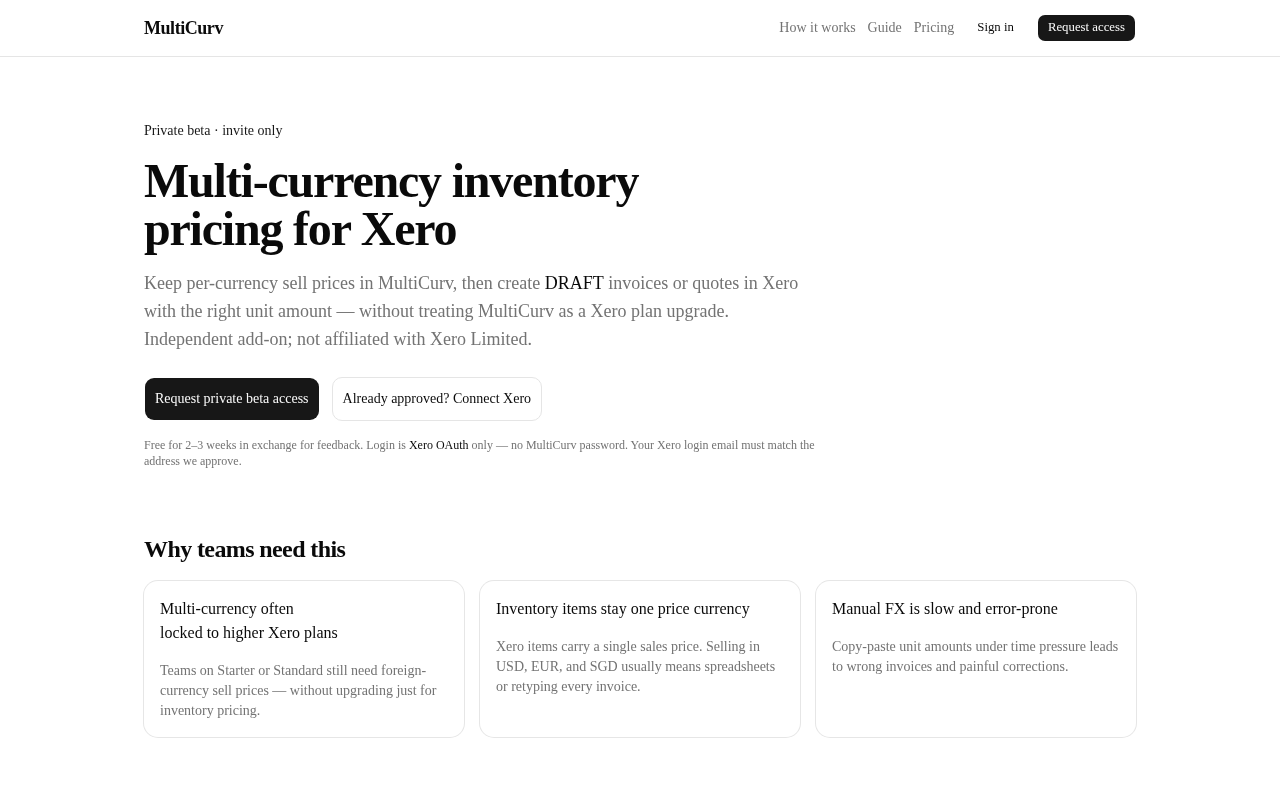
Step 1 — Request private beta access
Open the MultiCurv landing page and choose Request private beta access. Complete the form with the same email you use to sign in to Xero. After we approve you, that email is allowlisted.
Step 2 — Connect with Xero
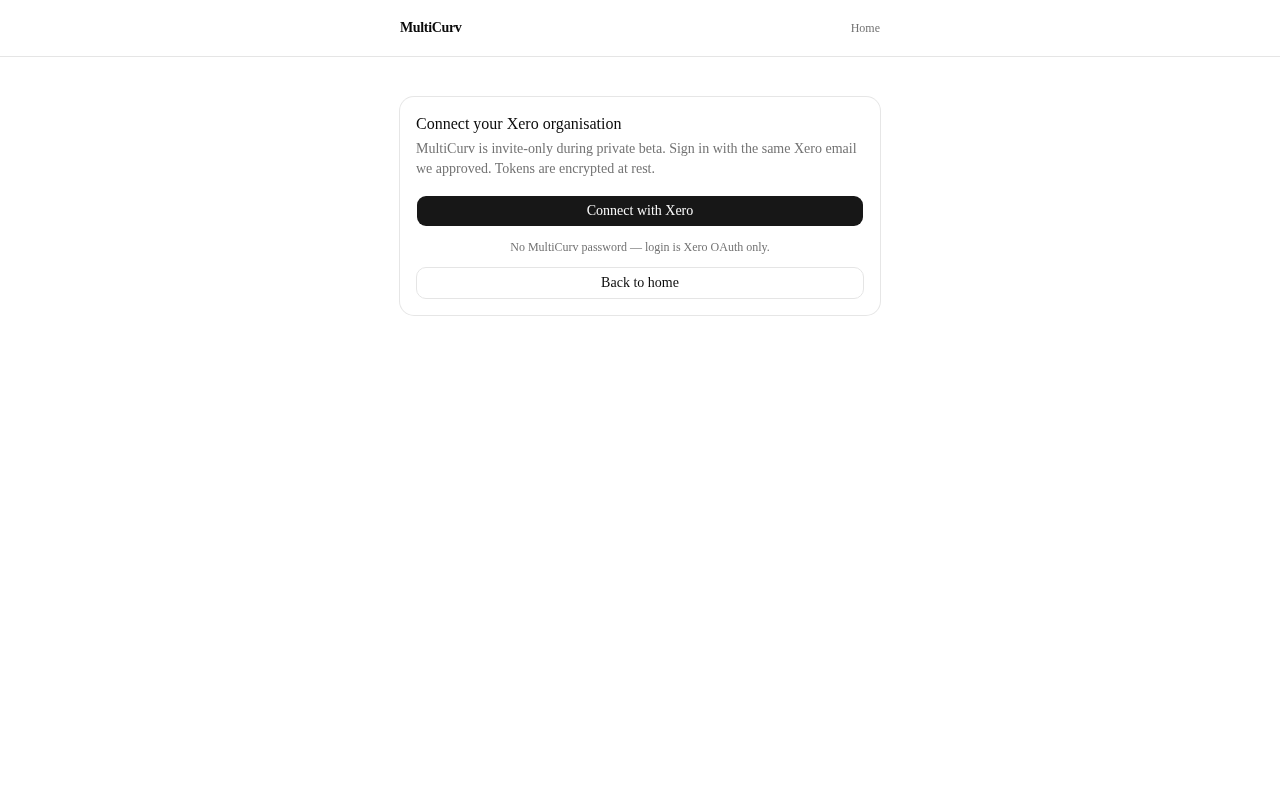
When approved, click Already approved? Connect Xero (or Sign in). You will see the connect screen, then Xero’s consent page. MultiCurv only requests scopes needed for items, contacts, and draft documents. Tokens are encrypted at rest.
Step 3 — Confirm your organisation
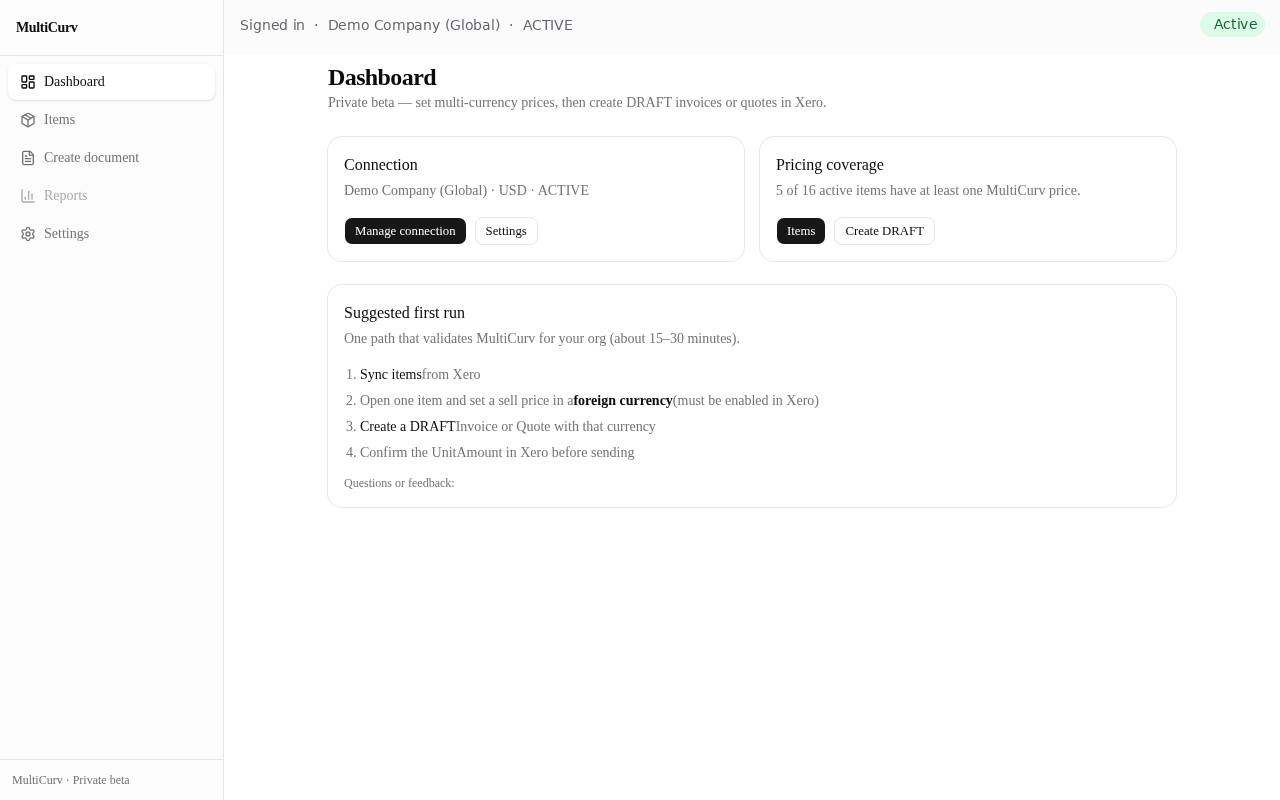
After a successful connect you land on the app dashboard. Check the organisation name, base currency, and connection status. From here go to Items to sync inventory.
Case 2
Sync items & set multi-currency prices
Price lists for foreign currencies live in MultiCurv. Xero remains the source of inventory items.
Step 1 — Sync inventory from Xero
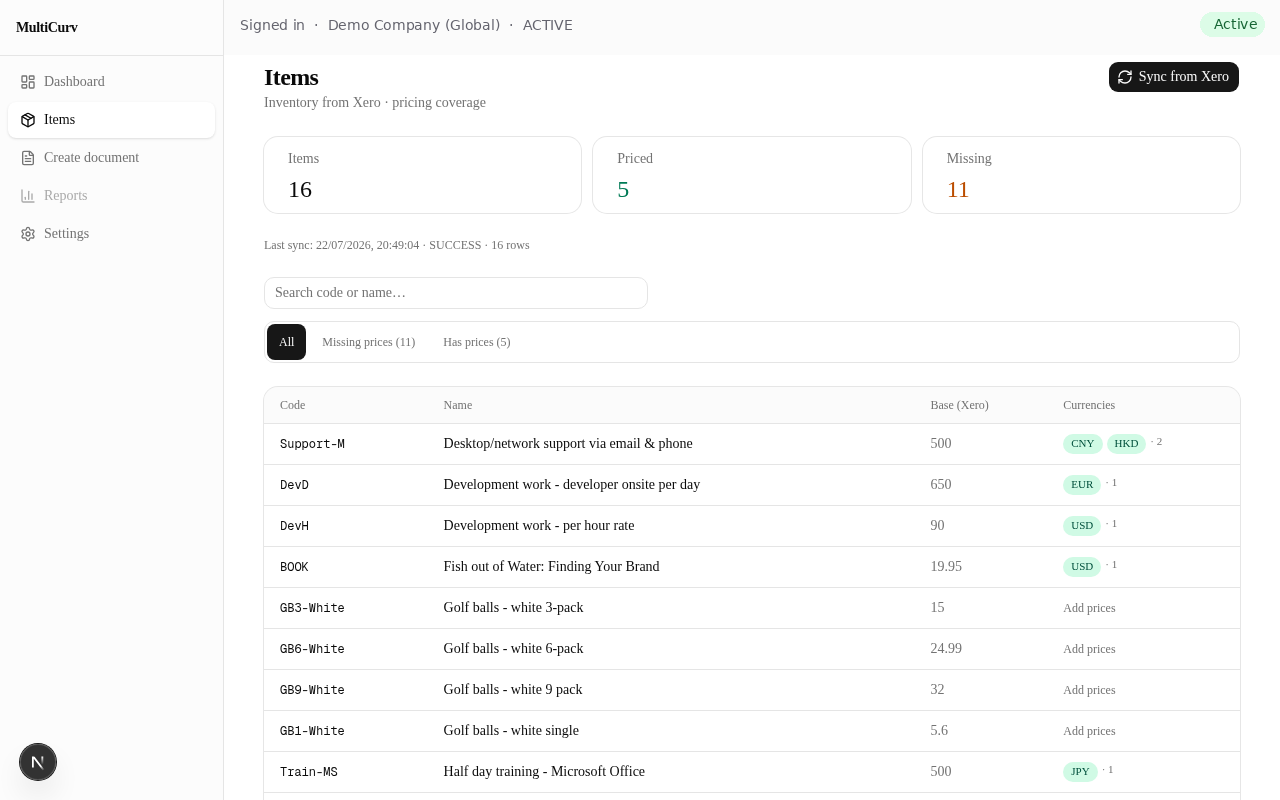
Open Items and click Sync from Xero. The table shows coverage: how many items already have MultiCurv prices vs still missing. Use search and filters as needed.
Step 2 — Edit multi-currency sell prices
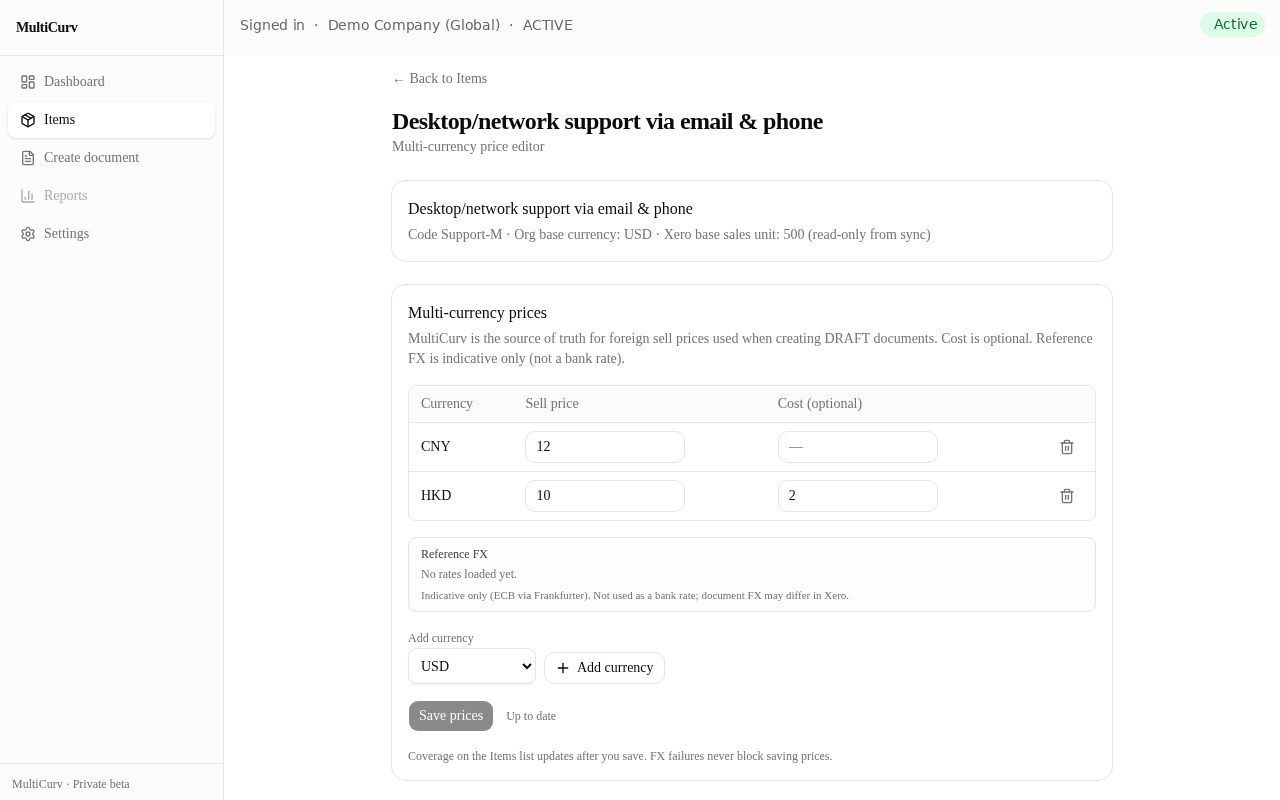
Open an item. Add currencies (for example EUR, HKD, CNY), enter sell prices, and Save prices. Optional cost and reference FX rates are for context only — document FX may still differ in Xero.
Case 3
Create a DRAFT Invoice or Quote
Apply MultiCurv prices as unit amounts on a draft document in Xero.
Step 1 — Fill Create document
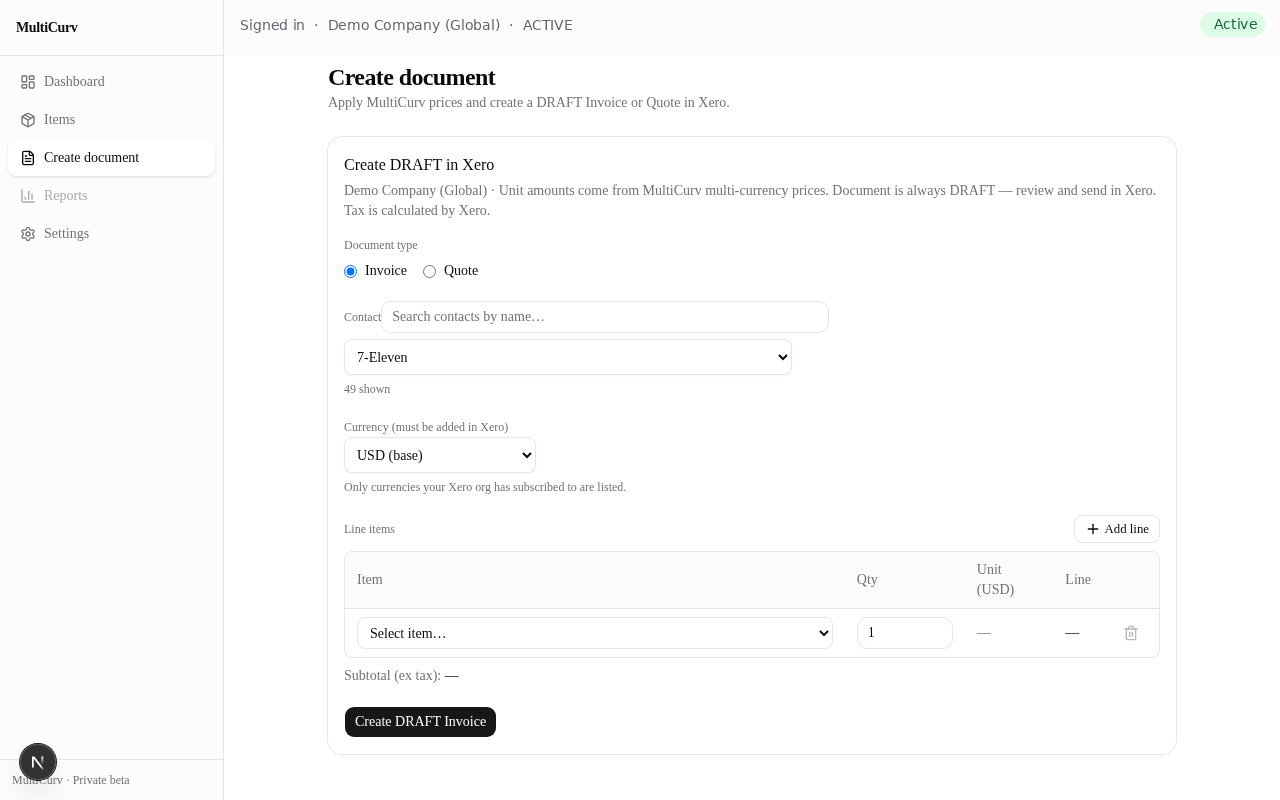
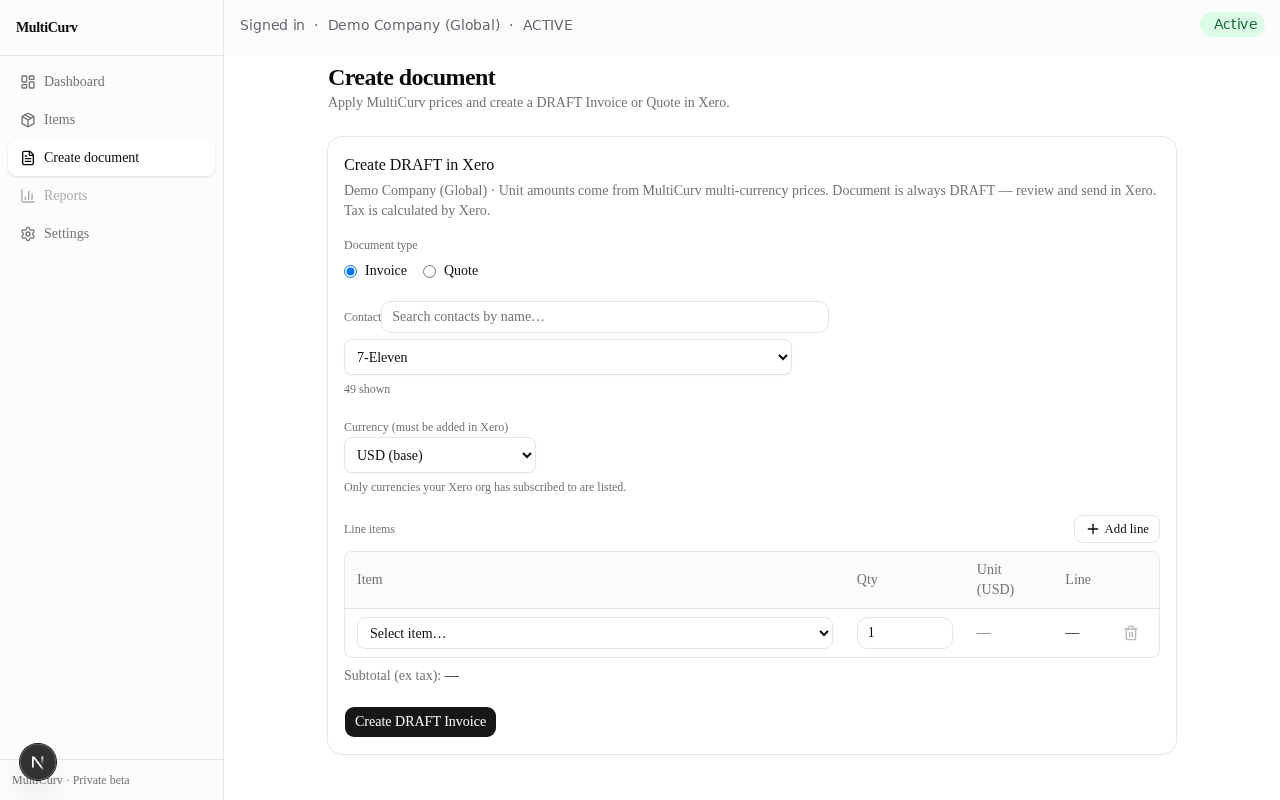
Go to Create document. Choose Invoice or Quote, search a contact, pick a currency your org has subscribed in Xero, add line items and quantities. Unit amounts come from MultiCurv multi-currency prices when available.
Step 2 — Create DRAFT, then finish in Xero
Click Create DRAFT Invoice (or Quote). MultiCurv never auto-sends the document. Open Xero, find the draft, confirm the unit amount and totals, then approve or send as usual.
Case 4 (optional)
Dual-SKU price migration
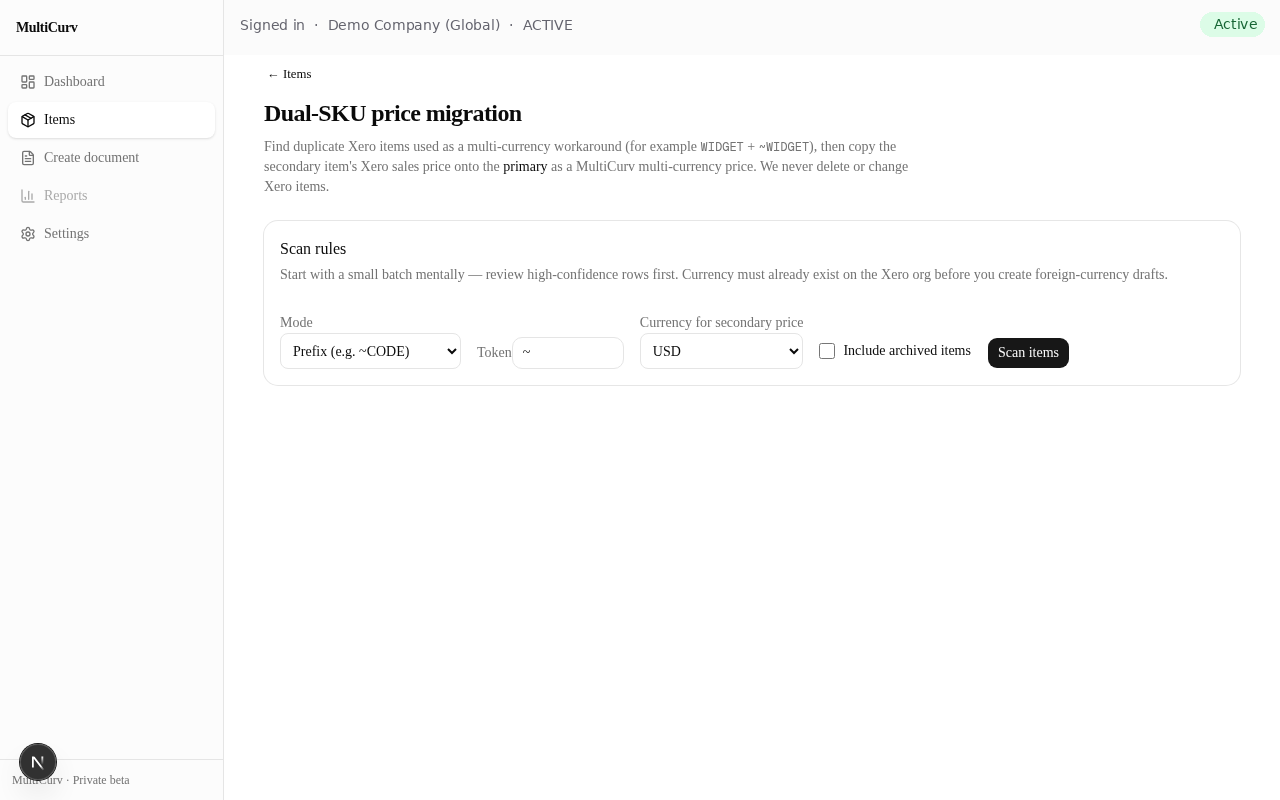
If you maintained two Xero items per product (for example WIDGET and ~WIDGET for another currency), use Dual-SKU migrate to copy the secondary Xero sales price onto the primary item as a MultiCurv multi-currency price. MultiCurv never deletes Xero items.
Step 1 — Open Dual-SKU migrate
On Items, choose Dual-SKU migrate, or go to /app/items/migrate. Set prefix ~ (or a suffix like -USD), choose the currency for the secondary price, then Scan items.
Step 2 — Review and apply
High-confidence rows with a price are selected by default. Adjust prices if needed, then apply. Open the primary item to confirm the multi-currency price, create a DRAFT to verify UnitAmount, and archive secondary items in Xero only when you are ready.
Quick reference
- Login is Xero OAuth only; closed beta uses an email allowlist.
- Foreign CurrencyCode must exist on the Xero organisation before creating FX drafts.
- Multi-currency sell prices live in MultiCurv; we do not write them back onto Xero item SalesDetails.
- Dual-SKU migrate copies secondary Xero sales prices onto primary MultiCurv prices only — it does not delete Xero products.
- Documents are always DRAFT — finish in Xero.
- After public launch: Basic $19 / Pro $39 per month (manual invoice / bank transfer). Private beta is free during beta testing (about 1–2 months) in exchange for feedback.